VIDEO, CHAT, AND AN AI CANVAS
1st place · HackBarna AI Summit 2026
Turn team
conversations into
plans you can work on.
Don’t rebuild the conversation
from scattered notes.
Keep your team’s call, conversation, and canvas together. Ask AI to put ideas on the board, then work through the plan without switching tools.
Get updates on Kan early access.
In development for Apple Silicon Macs.
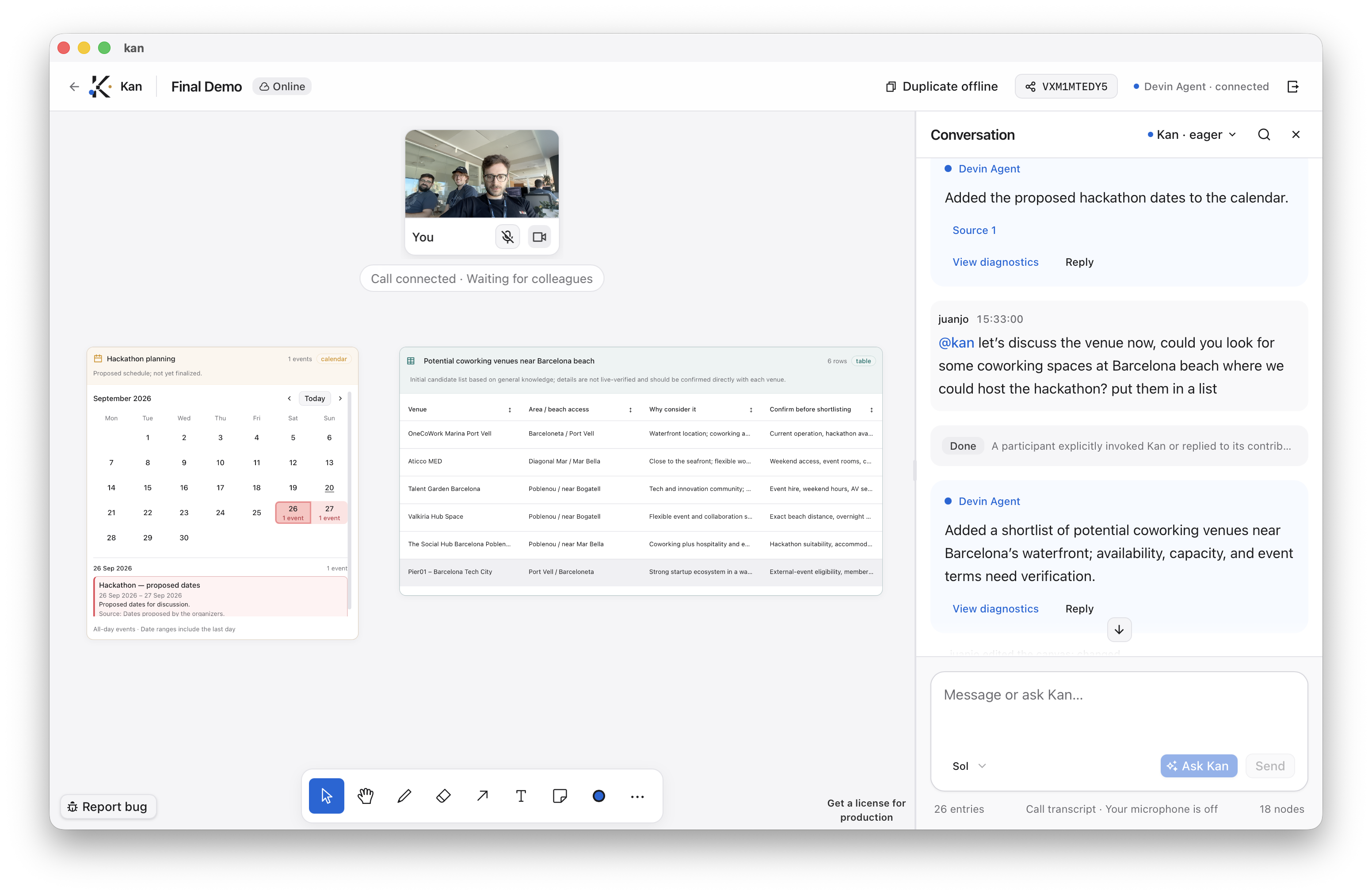
Your call, conversation, and shared canvas in one place
LESS PIECING IT BACK TOGETHER
The conversation moves forward.
The plan should too.
The call ends. The notes live in chat. Someone still has to pull the plan together. Kan brings the conversation and the canvas into the same workspace.
See how it works01 THE TEAM WORKSPACE
Keep the call
on the canvas.
Talk through the plan with your team while keeping the people, conversation, and board in view.
- Keep everyone looking at the same thing. Discuss ideas beside the canvas.
- Keep the context. Return to chat and saved call transcripts alongside the plan.
02 AI THAT WORKS ON THE BOARD
Ask in the thread.
Get it on the board.
Ask for a shortlist, a diagram, or a first draft. Your connected AI adds content to the canvas, where you can review and refine it.
- Keep requests beside results. See what you asked for and what was added.
- Connect your AI provider. Use Devin or OpenAI Codex with a supported account.
03 CONTENT YOU CAN WORK WITH
Compare the options.
Find the next step.
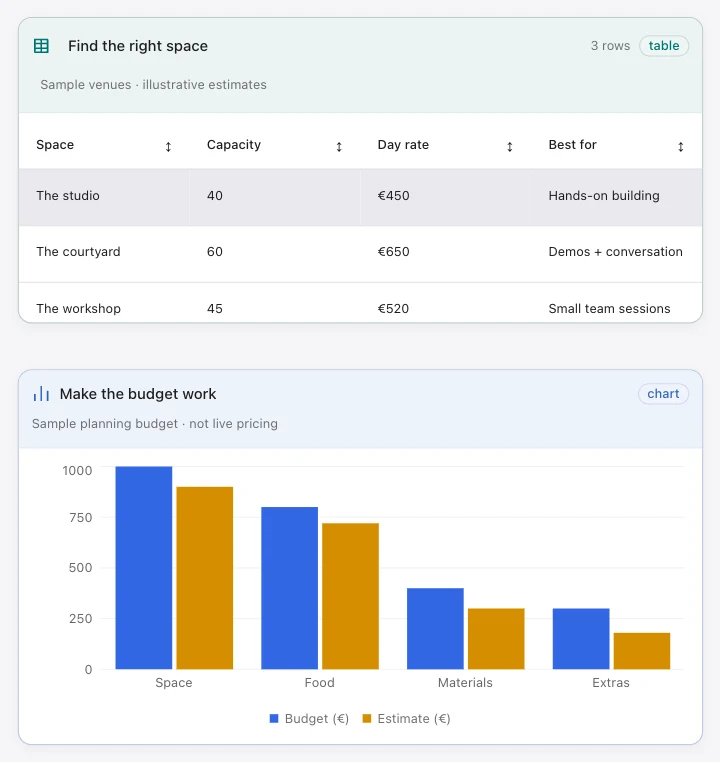
Sort a shortlist. Explore a budget. Put the options beside your notes and dates so you can work through the trade-offs.
- Compare side by side. Sort table columns and show or hide chart series.
- Look closer, or step back. Open a timeline event, move around the board, and keep the whole plan in view.
Shown on a solo canvas with sample data. The full rich-content toolset isn’t in shared rooms yet.
ONE CANVAS. MANY STARTING POINTS.
Start with something
you need to figure out.
An event to plan, a project to shape, or a decision to make.
Plan an event
Put venue options, proposed dates, and a budget on the same canvas.
Shape a project
Talk through the brief. Ask AI for a first draft or diagram, then refine it on the board.
Compare your options
Keep the shortlist beside the criteria, notes, and trade-offs behind your decision.
EARLY, AND OPEN ABOUT IT
A few things
worth knowing.
Access, supported Macs, AI accounts, and privacy.
Can I try Kan yet?
Not yet through the public waitlist. Join for early-access news and product updates. We haven’t announced an access date.
Which platforms are you building for?
The current desktop prototype runs on macOS with Apple Silicon. We’re starting there. Windows, Linux, and mobile availability haven’t been announced.
Do I bring my own AI account?
Yes. The prototype connects to Devin or OpenAI Codex, one provider at a time, using a supported subscription or API key. The provider’s limits and usage charges apply. The current setup also needs the Devin CLI, or Node.js with npm/npx for Codex.
Does everything stay on my Mac?
Solo canvases are stored locally. AI requests send your prompt and relevant context to your chosen provider. Shared rooms use a server; video and transcription use Vonage. Local canvas storage doesn’t mean local AI processing.
What happens to my waitlist email?
We store your email, signup time, and consent in a private Google Sheet. We use the list for Kan early-access news and product updates, not unrelated marketing. We don’t sell your email address.
This form doesn’t send automated emails or create an account. If you receive an update and no longer want to hear from us, reply and ask to be removed. No canvas content or AI account is needed to join.
FOR YOUR NEXT PLANNING SESSION
Give the conversation
somewhere to go.
Bring your team, your ideas, and a little AI help into one workspace. Join the waitlist for early-access news.
Take another lookGet updates on Kan early access.
No account needed to join.
Apple Silicon (M1 or later). This alpha is ad-hoc signed, not Apple-notarized.